
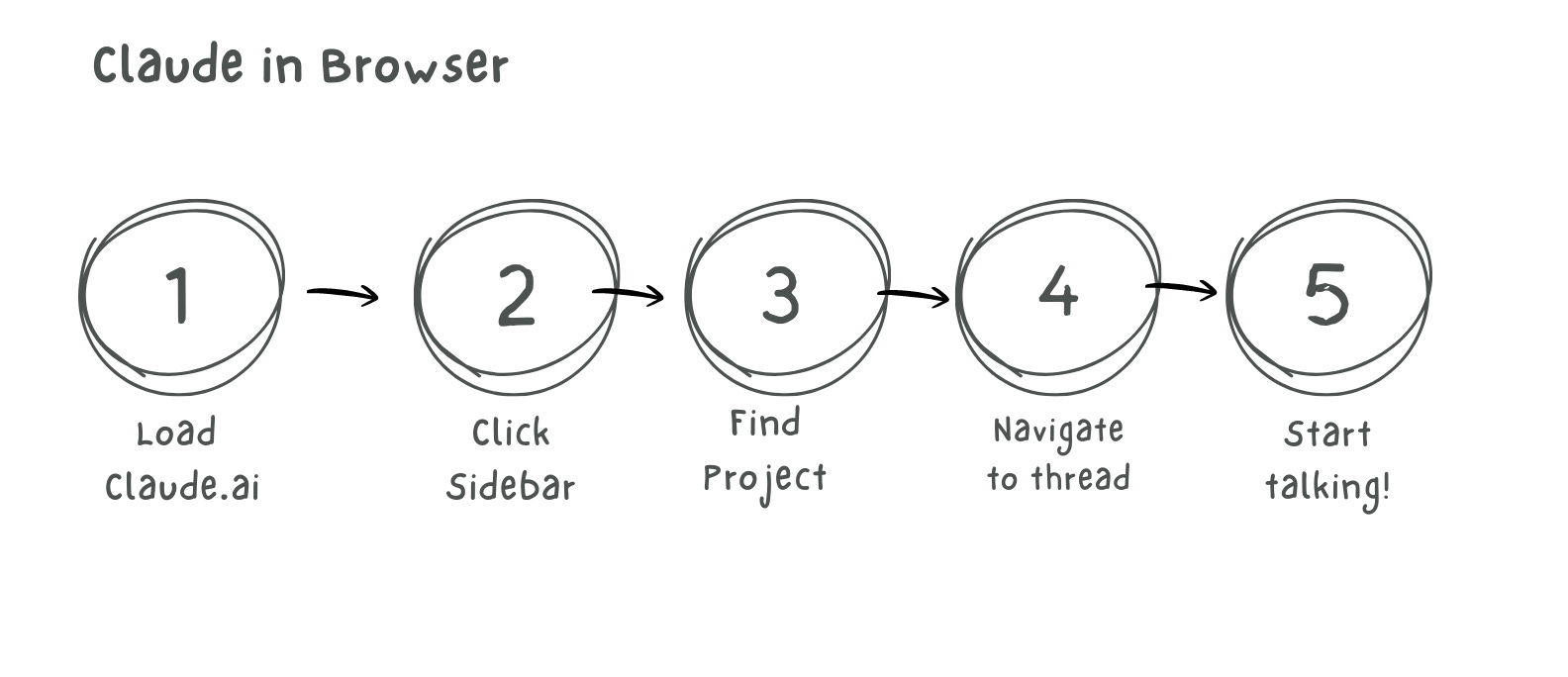
If you are a designer, Im 80% sure you might be using Claude from your browser. Click sidebar. Navigate to project. Click again. Select thread. Finally start talking.
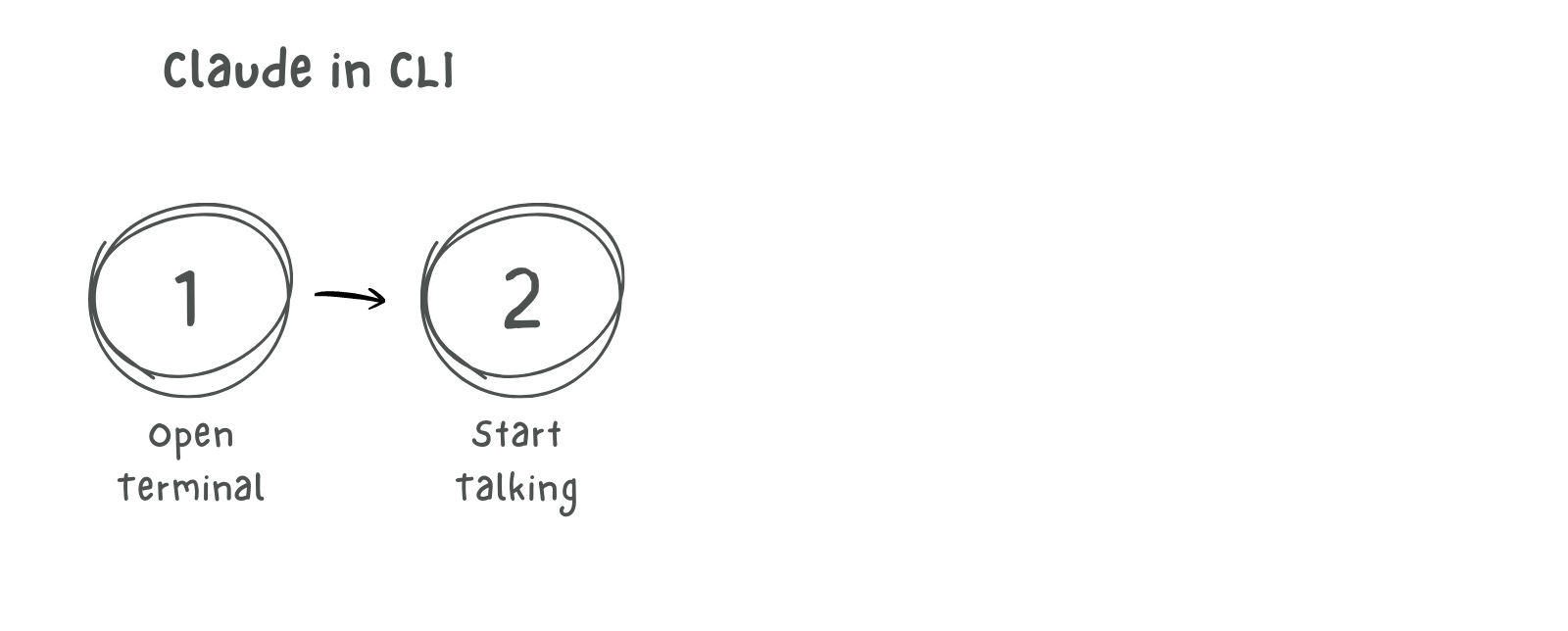
I used to do that too. Till I started using The TERMINAL!.
Browser experience comes with its own layers!
For the uninitiated, the browser would be an optimal experience for a conversational experience with the LLM. But let’s put on the hat of an experience designer and think about the steps you take before you start talking with the oracle:
Terminal experience is without layers
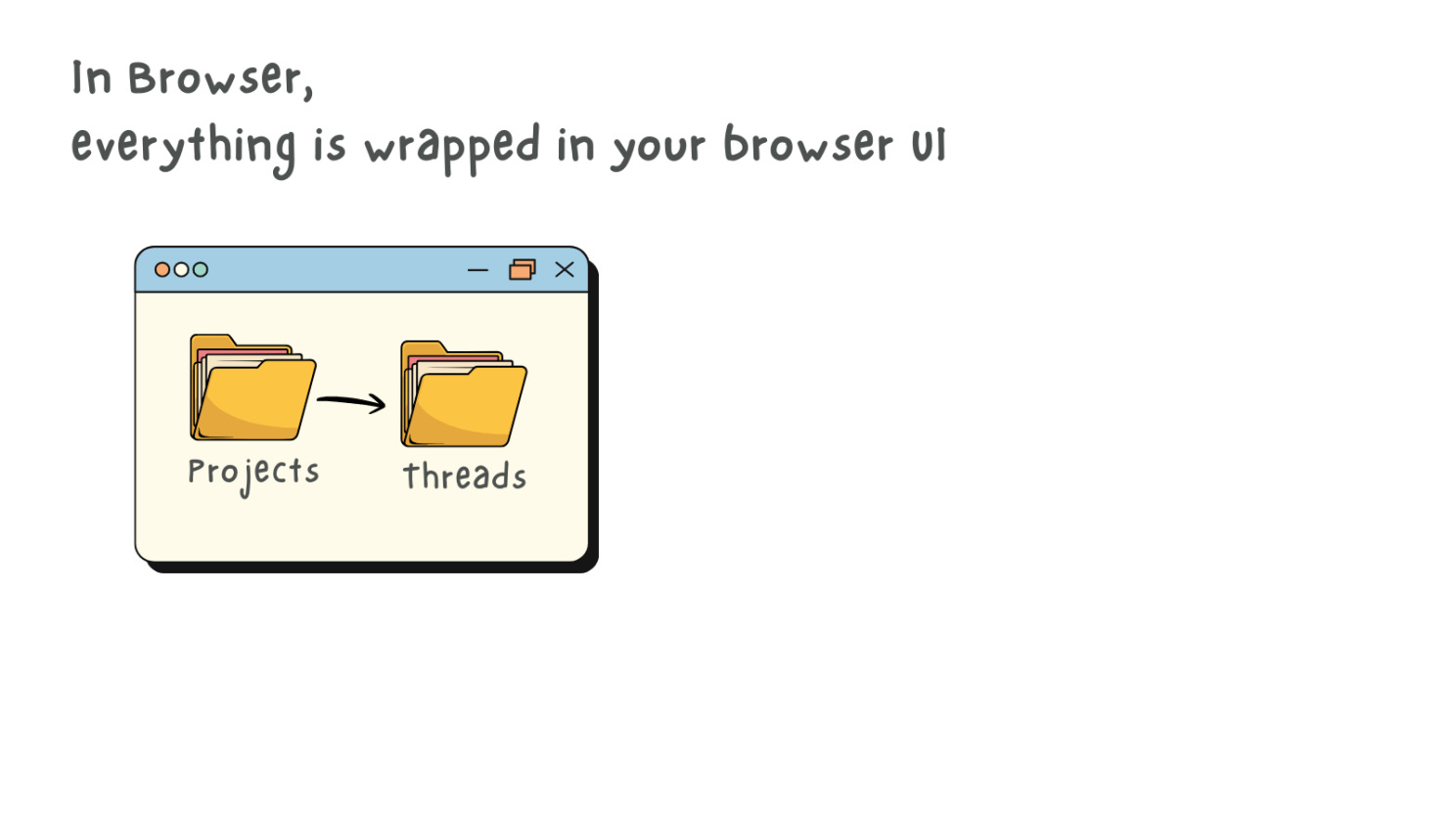
The “project” wrapper is artificial
If you are organised like me, you would always create ‘Projects’ before starting a conversation with Claude in the browser. Its help me align my mental model to my local file structure. But I still am going to have my local files in my physical file system as well - duplicacy!
In browser: Conversations live in threads. They disappear when you close the tab. They’re ephemeral.
In Terminal? Your file system IS the project.
Eg. I work in /Users/ranjith/projects/design-system/. That’s my project. I don’t need Claude to create another wrapper around it.
I just open Claude CLI by pointing to that folder. Done!
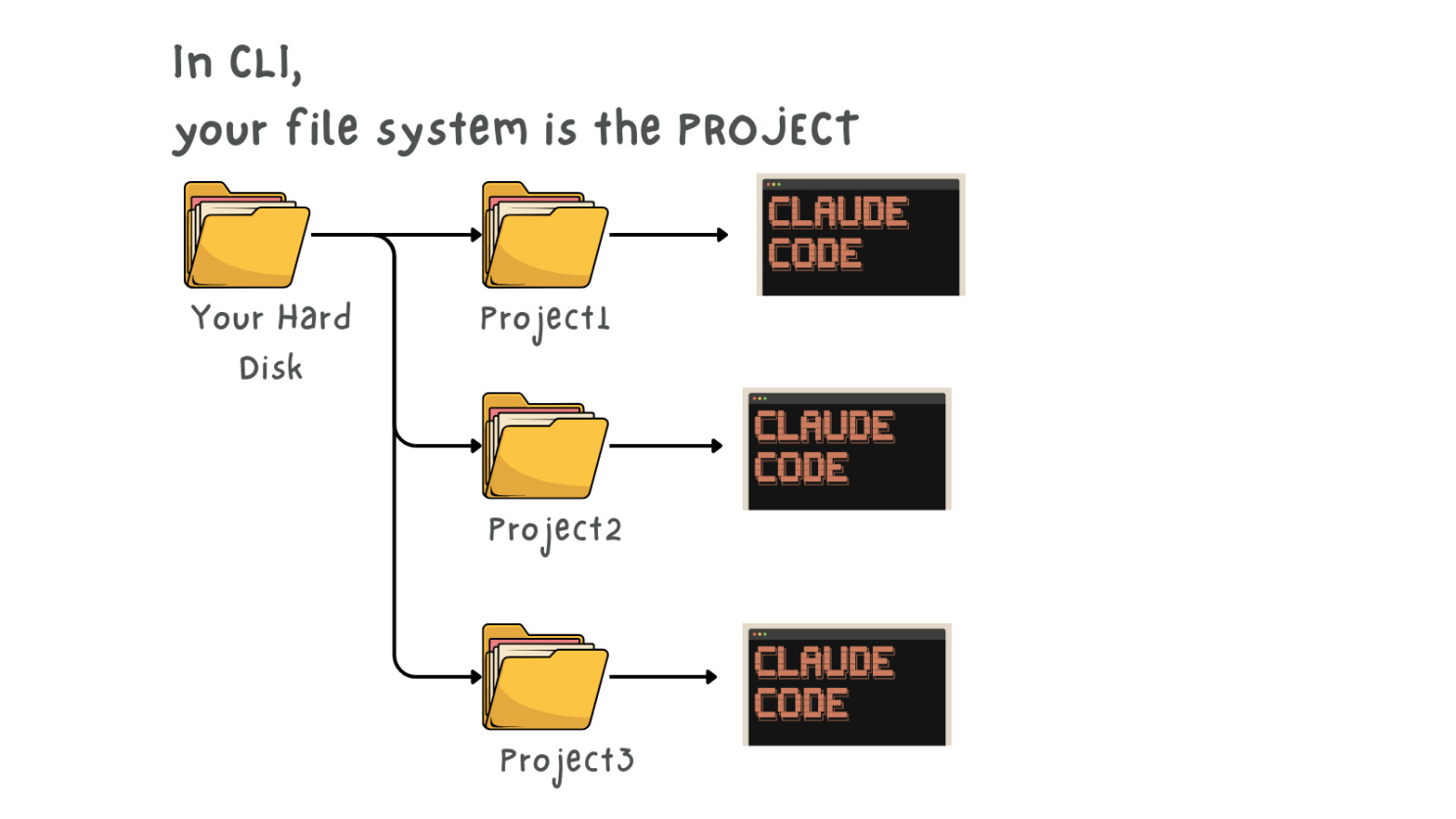
The file system I already use every day becomes the project structure. No extra abstraction layer. No extra clicks. No extra mental model to learn.
/Init files create permanent context
In Terminal: I create a CLAUDE.md file (init file). It anchors the project context. Forever.
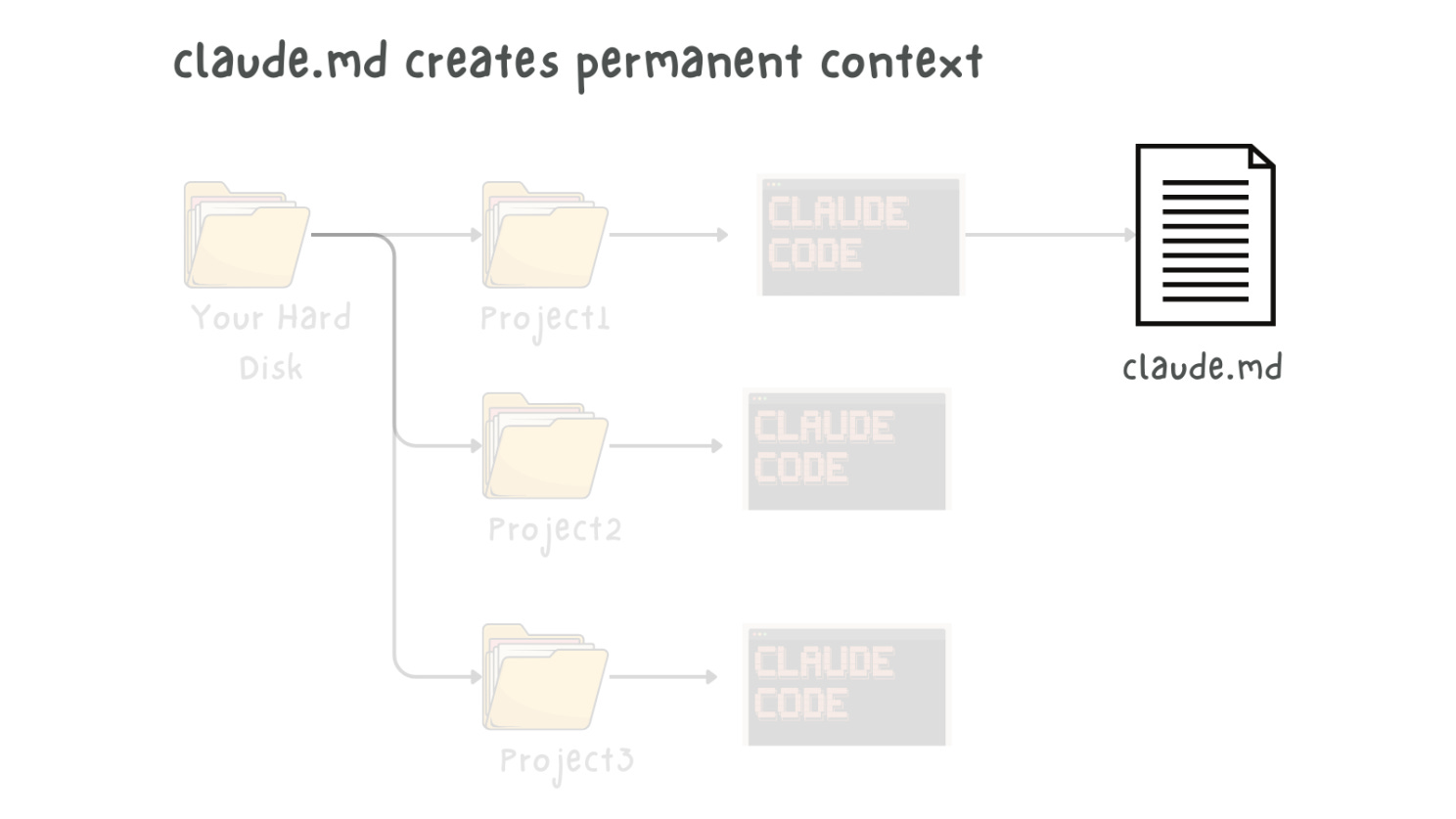
Every time I open Claude in that folder, it reads the init file. Context is set. Conversation continues from where we left off.
And the magic: Those MD files Claude creates? They persist. They’re documentation. They’re version-controlled. They’re shareable with my team. This way, I don’t have to worry about documentation as well - a win-win for the team!
Single source of truth
Browser forces duplication. Inspite of having a thread going on in browser, you are forced to maintain a copy of your project files in your machine’s file system. Your Claude conversations live in claude.ai/projects/design-system-project/.
Two places. Two organizational systems. Two sources of truth.
Terminal collapses that. Everything lives in one place: your file system.
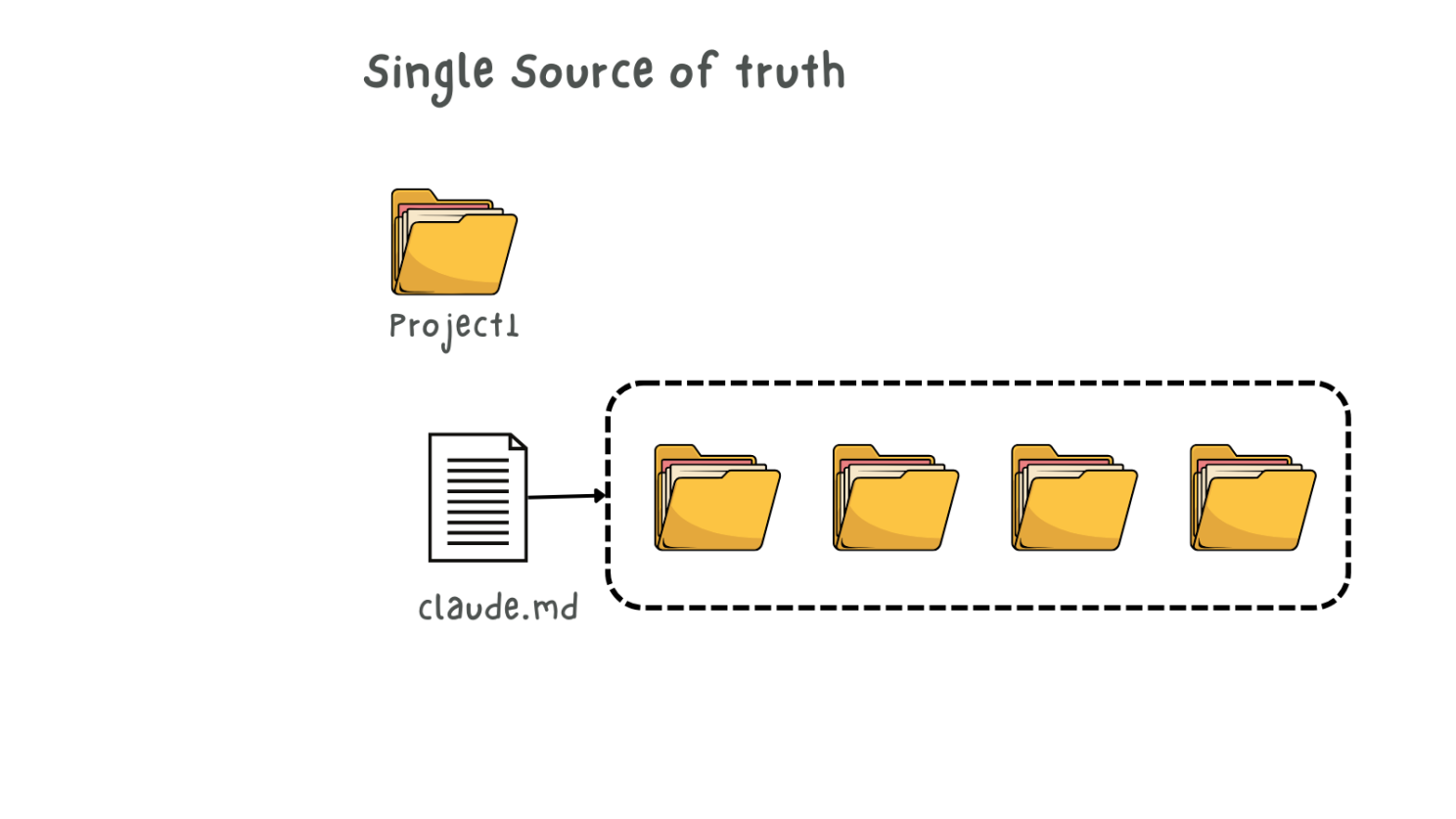
The designs. The code. The documentation. The AI conversations. All in the same folder structure u already use.
No sync issues. No wondering “where did I put that conversation?” One place. One truth.
“Okay but I don’t know Terminal.”
Its not rocket science. I just put together some basic commands you need to know. You can always find ways to learn it in a few hours/minutes!
# Terminal Commands for Designers Using Claude Code CLI

📂 NAVIGATING FOLDERS & FILES
See where you are
---
pwd                    # Print current folder path
ls                     # List files in current folder
ls -la                 # List all files (including hidden) with details

---

## ✏️ **EDITING TEXT FILES (Useful while creating agents)**

### Open editors
```bash
nano file.txt          # Easy editor (Ctrl+O save, Ctrl+X exit)
vim file.txt           # Power editor (i to edit, Esc :wq to save/quit)
code file.txt          # Open in VS Code (if installed)
open file.txt          # Open in default Mac app
```

### Vim quick reference
```bash
# Movement
gg                     # Jump to top of file
G                      # Jump to bottom of file
50G                    # Jump to line 50
{  }                   # Jump between paragraphs
Ctrl+u / Ctrl+d        # Scroll up/down half page
w  b                   # Jump forward/backward by word
0  $                   # Jump to start/end of line

# Editing
i                      # Enter insert mode
A                      # Insert at end of line
o                      # Open new line below
dd                     # Delete (cut) entire line
yy                     # Yank (copy) entire line
p                      # Paste
u                      # Undo
Ctrl+r                 # Redo

# Save & Exit
:w                     # Save
:q                     # Quit
:wq  or  ZZ            # Save and quit
:q!                    # Quit without saving
```

---

## 🤖 **CLAUDE CODE CLI COMMANDS**

### Work with files
```bash
claude --files file1.txt file2.md    # Include specific files in context
claude --files *.md                  # Include all markdown files
claude --output result.txt           # Save response to a file
```

### Common workflows
```bash
# Review and improve a file
claude "review this design brief" --files brief.md

# Generate code from a mockup
claude "convert this Figma export to React" --files design.png

# Batch process files
claude "summarize each file" --files *.txt

# Continue previous conversation
claude --continue

# Clear chat history
claude --clear
```

---


## 💡 **POWER USER SHORTCUTS**

### Tab completion
```bash
Type first few letters + Tab      # Auto-complete file/folder names
```

### Command history
```bash
↑ / ↓ arrows           # Scroll through previous commands
history                # Show all recent commands
!123                   # Re-run command #123 from history
!!                     # Re-run last command
```

### Pipe & redirect
```bash
command > file.txt     # Save output to file (overwrite)
command >> file.txt    # Append output to file
command1 | command2    # Pass output of command1 to command2
```

### Combine commands
```bash
command1 && command2   # Run command2 only if command1 succeeds
command1 ; command2    # Run both commands regardless
```

---

## 🎯 **QUICK REFERENCE TIPS**

1. **Use Tab liberally** — it auto-completes and prevents typos
2. **Use `ls` constantly** — always know where you are
3. **Start simple with nano** — graduate to vim when ready
4. **Use `--help` flag** — most commands show help with `command --help`
5. **Google is your friend** — search "how to [task] in terminal"

---

## 🚀 **DESIGNER-SPECIFIC WORKFLOWS**

### Convert Figma exports to code
```bash
claude "create React components from these designs" --files *.png
```

### Process design documentation
```bash
claude "extract design tokens from this style guide" --files styleguide.pdf
```

### Batch rename design files
```bash
for file in *.png; do mv "$file" "design-${file}"; done
```

### Generate design system docs
```bash
claude "create component documentation" --files components/*.tsx --output README.md
```

### Optimize images in batch
```bash
for file in *.jpg; do convert "$file" -quality 85 "optimized-${file}"; done
```

### Create project structure
```bash
mkdir -p project/{assets,components,docs,styles}
```

---

## 📋 **COMMON PITFALLS TO AVOID**

1. **Don't use `rm -rf /`** — this deletes everything (seriously)
2. **Use `ls` before `rm`** — always check what you're about to delete
3. **Spaces in filenames are tricky** — use quotes: `cd "My Folder"`
4. **Case matters** — `File.txt` ≠ `file.txt`
5. **Hidden files start with `.`** — use `ls -la` to see them

---

## 🔗 **USEFUL ALIASES TO SET UP**

Add these to your `~/.zshrc` or `~/.bashrc`:

```bash
alias ll='ls -la'                    # Better list view
alias ..='cd ..'                     # Quick up one level
alias desk='cd ~/Desktop'            # Quick to Desktop
alias docs='cd ~/Documents'          # Quick to Documents
alias gs='git status'                # Quick git status
alias ga='git add .'                 # Quick git add all
alias gc='git commit -m'             # Quick git commit
```

After adding, run: `source ~/.zshrc` to activate
Should u switch?
If you’re a designer using AI regularly, yes.
If u collaborate with developers, yes.
If you’re tired of clicking through sidebars to find your projects, yes.
If u want your AI conversations to persist as documentation, yes.
The browser is fine for casual use. But if Claude (or ChatGPT or Gemini) is part of your daily workflow? Terminal eliminates friction u didn’t know u had.
Additional Bonus
Use a dictation service to just talk to claude and save your fingers from perennial typing ;) Will share more of my workflow soon...